
Last Updated: October 26, 2026
Quick Summary
To create a Power Automate onboarding checklist, build a SharePoint Onboarding Tasks list with columns for task name, department, due offset, status, and owner, then connect a Microsoft Forms new-hire intake to a cloud flow that creates checklist items and assigns tasks by department. Add approval actions, daily reminders, and error handling to complete your Power Automate onboarding build.
- Create one Onboarding Tasks SharePoint list per company and filter it by employee later.
- Use a Switch or Condition action to route tasks to HR, IT, managers, or the new hire by Department.
- Add role-based tasks with conditional logic, such as manager training only when Role Level equals Manager.
- Run a daily scheduled flow that reminds owners of due or overdue tasks and sends HR a weekly summary.
- Use Configure run after so failed actions send notifications, and test with one dummy hire first.
Table of Contents
- Why Automate Your Onboarding Checklist with Power Automate
- Build a SharePoint Employee Onboarding Checklist Template
- New Employee Onboarding Checklist Examples by Department
- Capture New-Hire Details with Microsoft Forms
- Build the Power Automate Approval Workflow for Onboarding
- Set Up Automated Onboarding Task Reminders
- Track Completion and Handle Flow Errors
- Schedule Your Power Automate Onboarding Build with MTRC
- Frequently Asked Questions
Why Automate Your Onboarding Checklist with Power Automate
A new hire's first week is a blur of paperwork, logins, and waiting. Every missed step costs time and makes a bad first impression. That is why Power Automate onboarding flows are built for mid-market teams: one trigger, one checklist, and every task lands with the right owner on the right day. For teams that want it built for them, see our Power Automate consulting service.
Power Automate onboarding is the practice of using Microsoft's workflow engine to create, assign, and track new-hire tasks automatically instead of chasing them through email. The payoff is simple: fewer manual approvals and a repeatable process your HR team can run without a project manager.
Below, we'll show you exactly how to create a Power Automate onboarding checklist in seven steps, from the SharePoint list schema to reminders and error handling. And here is what most guides get wrong: they stop at the flow diagram. We will hand you the actual task data to copy.
If you would rather see the process end to end, explore five business processes you can automate with Power Platform before you build.
Build a SharePoint Employee Onboarding Checklist Template
Start with the data, not the flow. A SharePoint list is the backbone of your checklist: it stores every task, owner, and due date in one place, and Power Automate reads from it and writes back to it.
The first step to create a Power Automate onboarding checklist is building this list. Create a list called Onboarding Tasks on your HR site. Keep one list per company, not per hire. You will filter it by employee later.
Checklist List Schema and Required Columns
These columns cover 90% of onboarding needs:
- Task Name (single line of text) - what needs doing
- Department (choice: HR, IT, Manager, New Hire) - who owns it
- Due Offset (number) - days after start date the task is due
- Status (choice: Not Started, In Progress, Complete) - default Not Started
- Assigned To (person) - the task owner
- Employee Name (single line of text) - the new hire
- Start Date (date) - drives every due date
- Approval Required (yes/no) - flags manager sign-off tasks
Sample Task Data to Copy Into Your List
Here is a starter set you can paste straight into your list:
| Task Name | Department | Due Offset | Approval Required |
|---|---|---|---|
| Send welcome email | HR | -3 | No |
| Order laptop and badge | IT | -5 | No |
| Create Microsoft 365 account | IT | -2 | No |
| Schedule orientation | HR | -1 | No |
| Assign onboarding buddy | Manager | 0 | No |
| Complete policy sign-off | New Hire | 3 | Yes |
| Set 30-day goals | Manager | 7 | Yes |
New Employee Onboarding Checklist Examples by Department
No two departments onboard the same way. Role-based tasks keep the checklist relevant and stop IT from being assigned policy training. Here are new employee onboarding checklist examples that can be used as starting points.
HR tasks: welcome email, benefits enrollment, orientation booking, policy sign-off, and a 30-day check-in.
IT tasks: laptop imaging, Microsoft 365 account and license assignment, Teams and SharePoint access, and badge setup.
Manager tasks: onboarding buddy assignment, first-week schedule, 30-day goal setting, and manager sign-off on probation tasks.
New Hire tasks: profile completion, required training, and a first-week feedback form.
The pattern: HR owns paperwork, IT owns access, managers own people, and the new hire owns their own to-dos. Map every task to one of these four owners and the flow logic writes itself.
Capture New-Hire Details with Microsoft Forms
Microsoft Forms is the front door. Build one form, "New Hire Intake," and let HR submit it when an offer is accepted. The form collects the employee profile that drives the rest of the flow.
Fields to include:
- Full name and personal email
- Job title and department
- Start date
- Manager name
- Role level (for conditional tasks)
- Equipment needs
When the form is submitted, Power Automate grabs the responses and uses them to create checklist instances and assign tasks. This is the workflow trigger that starts everything, so keep the form short and required fields tight. A form that takes four minutes to complete is one HR will actually use.
Build the Power Automate Approval Workflow for Onboarding
Now connect the pieces. Create a cloud flow that starts when a new response is submitted in Microsoft Forms. Add a Get response details action, then create the checklist items in your SharePoint list using the form data.
For tasks that need manager sign-off, add a Start and wait for an approval action (Create and test an approval workflow with Power Automate - Power Automate). The manager gets an approval request in Teams or email, and the task status updates when they respond. That is the Power Automate approval workflow for onboarding in its simplest form.
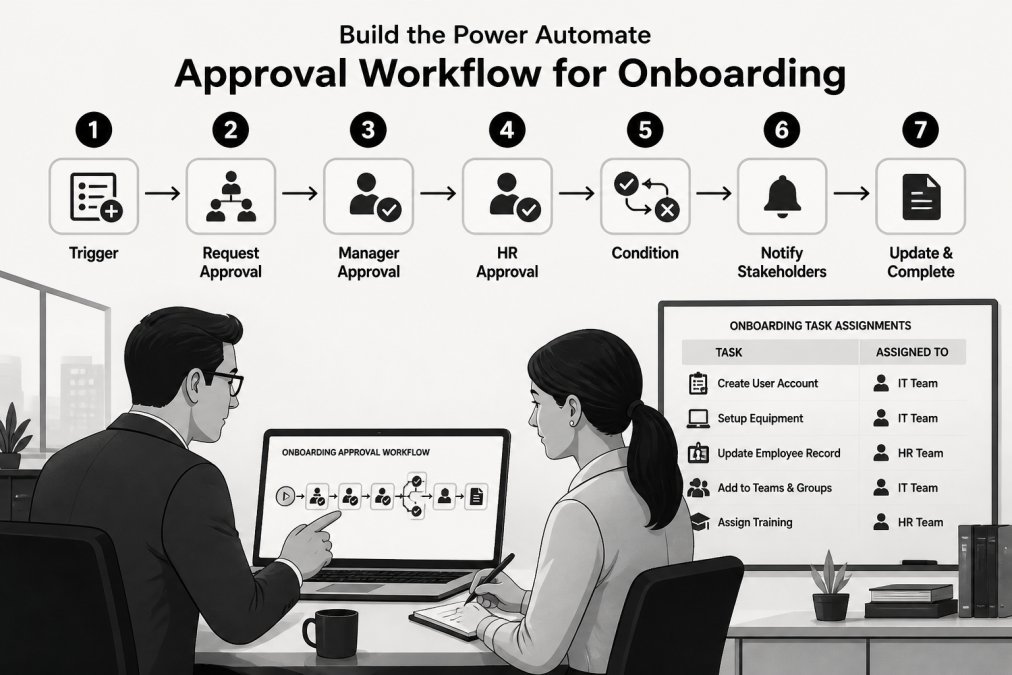
If you want a deeper walkthrough of building the approval step itself, read how to build a SharePoint document approval workflow.
Flow Trigger and Task Assignment Logic
The assignment logic is the part most guides skip. Use a Switch or Condition action to set the task owner based on the Department column. HR tasks route to the HR mailbox, IT tasks to the IT group, and manager tasks to the manager named in the form. New Hire tasks route to the employee's new account.
Conditional Logic for Role-Based Tasks
Not every hire needs every task. Use conditional logic to add tasks only when they apply. For example, add a "manager training" task only when Role Level equals Manager. Add "equipment request" only when Equipment Needs is not empty. This keeps the checklist lean and role-based, so new hires see tasks that matter to their job.
Set Up Automated Onboarding Task Reminders
A checklist nobody checks is just a list. Automated onboarding task reminders close the loop. Create a scheduled flow that runs daily, checks the SharePoint list for tasks that are due or overdue, and sends a reminder to the task owner.
Set the reminder to run at a fixed time, filter for Status not equal to Complete, and compare due dates against today. Send one reminder to the owner and a weekly summary to HR. This is how task completion rate climbs without anyone sending a manual nudge.
Track Completion and Handle Flow Errors
Tracking is the difference between a working flow and a flow you trust. Build a simple status view in SharePoint that groups tasks by Status and shows overdue items. HR can see onboarding progress at a glance.
Watch out: flows fail silently. Add a Configure run after setting so a failed action sends you a notification instead of stopping quietly (Employ robust error handling - Power Automate). Common failures include missing list columns, renamed choices, and permission gaps. Test with one dummy hire before you turn it on for real employees.
Security and Access Control for Onboarding Data
Onboarding data includes personal details, so lock it down. Use SharePoint permissions to restrict the list to HR and IT, not the whole company. Store new-hire information in a site with limited access, and review who can see employee records quarterly. Give the flow's connection account only the permissions it needs, and never share credentials.
Schedule Your Power Automate Onboarding Build with MTRC
Building this yourself is doable. Doing it well, with error handling, security, and conditional logic that survives real hires, takes experience. That is where we come in.
At MTRC Enterprises, we build Power Automate onboarding flows hands-on alongside your team, with knowledge transfer included so your staff can maintain them. Our engagements are fixed-price with defined deliverables, and our Microsoft Certified Trainer background means your team learns the platform, not just the outcome.
If you want to see what your team can build, explore our Power Automate training. Ready to scope your onboarding automation? Schedule your free consultation and we will map the flow together.
Frequently Asked Questions
How do I create an employee onboarding checklist in Power Automate?
Start by building a SharePoint list with columns for task name, owner, due date, and status. Then create a Power Automate flow triggered when a new item is added or when Microsoft Forms receives a new-hire submission. Use the Create item action to add tasks, an approval action for manager sign-off, and a scheduled reminder to chase overdue items. The flow handles task assignment and notifications so HR does not have to send each one manually.
Can Power Automate automate new-hire onboarding tasks?
Yes. A Power Automate onboarding flow can create checklist items, assign task owners across HR, IT, and the manager, send welcome emails, request approvals, and post reminders when due dates pass. You can also branch the flow with conditional logic so role-based tasks, such as equipment provisioning for IT or payroll setup for finance, only appear when the new hire's department matches. The flow runs on the schedule or trigger you define, reducing manual follow-up.
How do I track onboarding checklist completion in Microsoft 365?
Add a Status column to your SharePoint list with values like Not Started, In Progress, and Complete. Build a Power Automate flow that updates the status when a task owner marks an item done, and use a SharePoint view or Power BI dashboard to show completion rates and overdue tasks. For manager sign-off, add an approval action that records the decision in the list. Review the dashboard weekly during onboarding season to catch bottlenecks early.
How can I send reminders for incomplete onboarding tasks?
Use a scheduled cloud flow that runs daily, queries the SharePoint list for items where Status is not Complete and Due Date is within the next two days, and sends a reminder email or Teams message to the task owner. Include the task name and due date in the message. Add a second reminder for items past due, and escalate to the manager after a set number of days. This keeps automated onboarding task reminders consistent without manual chasing.
Your next hire starts soon, and a manual checklist will not scale. MTRC Enterprises brings hands-on implementation, fixed-price engagements, and knowledge transfer so your team owns the workflow. Get started with MTRC Enterprises and turn onboarding into a repeatable, automated process.
